2. STIGMan Application Management Guide
2.1. STIGMan App Manager Guide
Lists functionality available to App Managers (often called “admins” for short) in the STIG Manager app. For information about administering a deployment of STIG Manager, please see Setup and Deployment.
2.2. Application Management Branch
The Application Management branch provides access to the following Application Management panels.
2.2.1. Collections Admin Panel
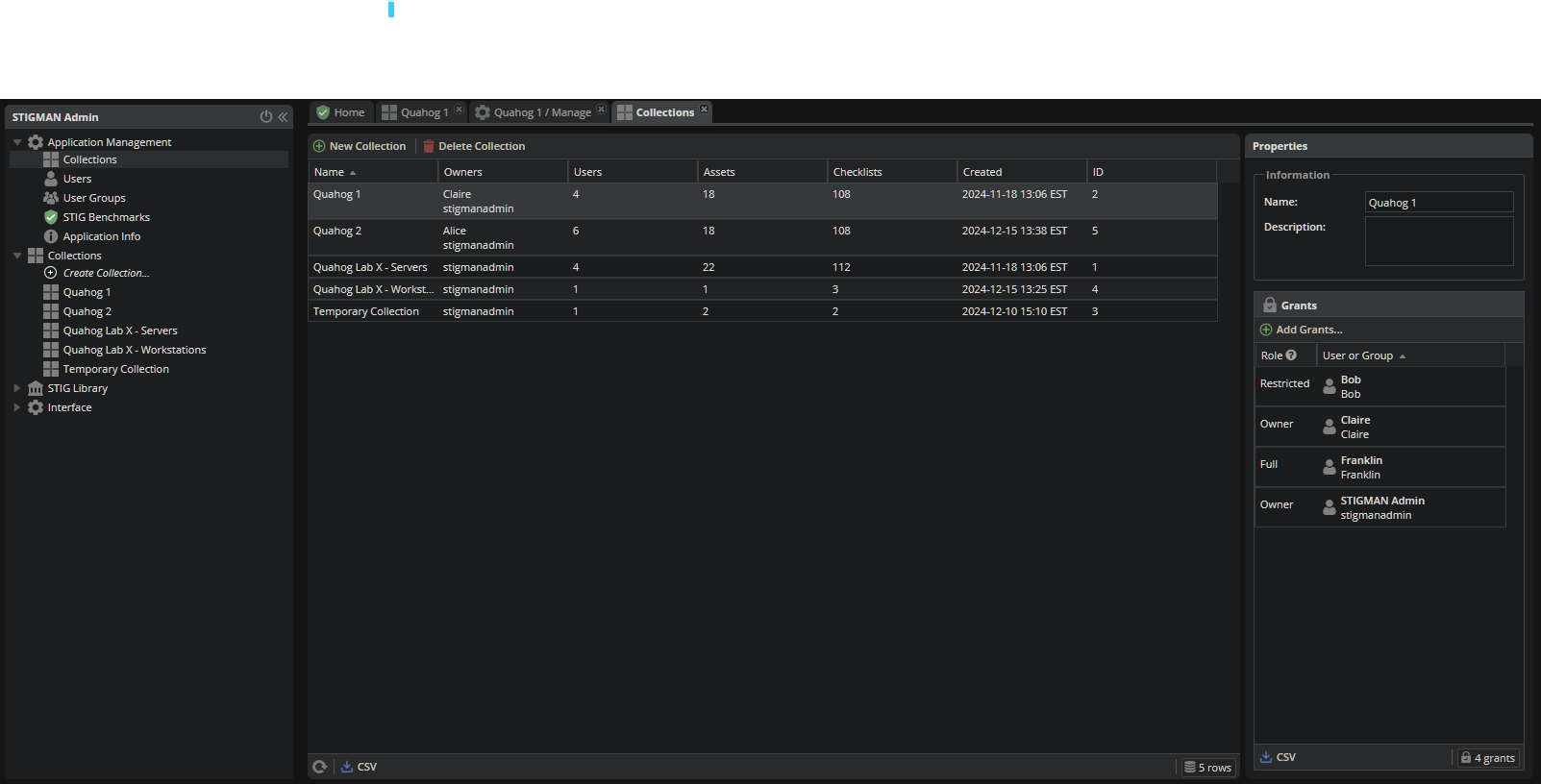
This Panel lists every Collection in the STIGMan system, and allows you to create, delete, and alter them with the buttons at the top. The columns list the Collection Name, Description, Owners, total User members, total Assets, total assigned STIGs, and the date of creation.
Note
Be sure to assign a new Collection an Owner, or no one except for App Managers will be able to see it!
2.2.2. User Grants Admin Panel
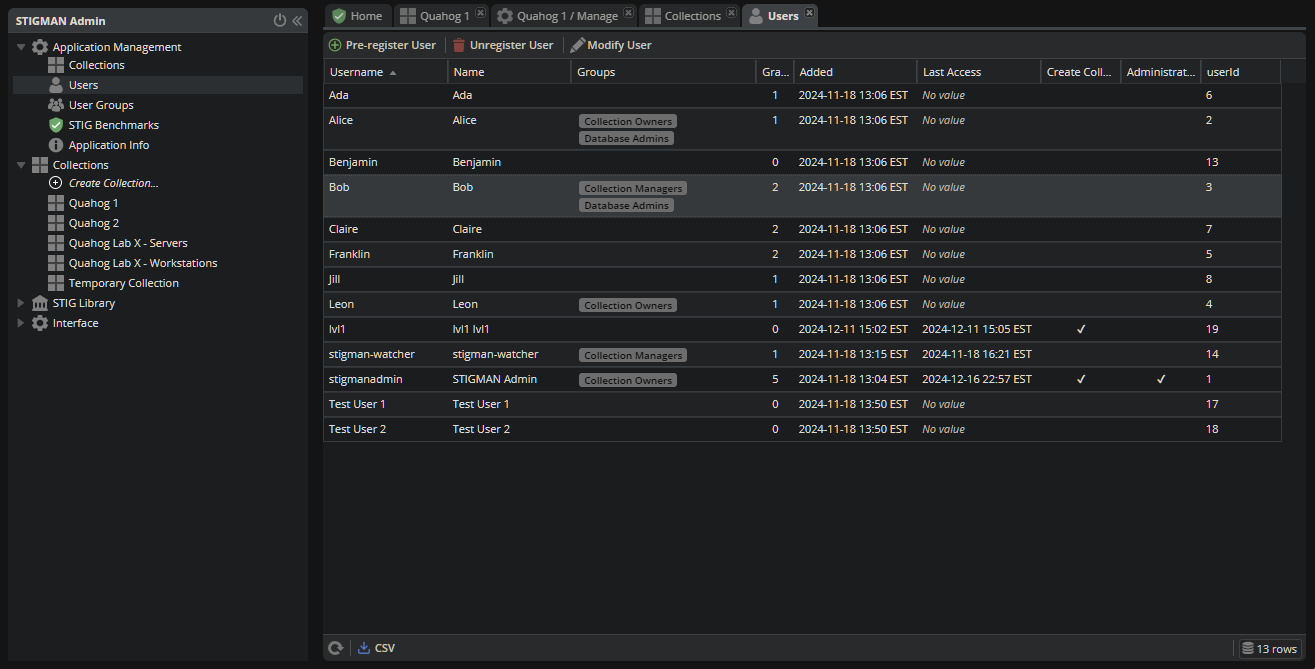
This Panel lists every User known to the STIGMan system. The columns display usernames, Display Name, date of first User access, last User access, User’s privileges ( Create Collection or Administrator), and their internal userid.
STIG Manager’s Users are automatically created when they have successfully used your Authentication Provider to authenticate and are redirected back to the STIGMan application.
Users can be pre-registered before they have authenticated with your Authentication Provider, but the username must match exactly.
Users can be Unregistered from STIG Manager, which will delete STIGMan’s information about the User. If the User accesses STIG Manager again, they will appear as a new User, with no STIG Assignments or Collection Grants.
2.2.2.1. User Properties
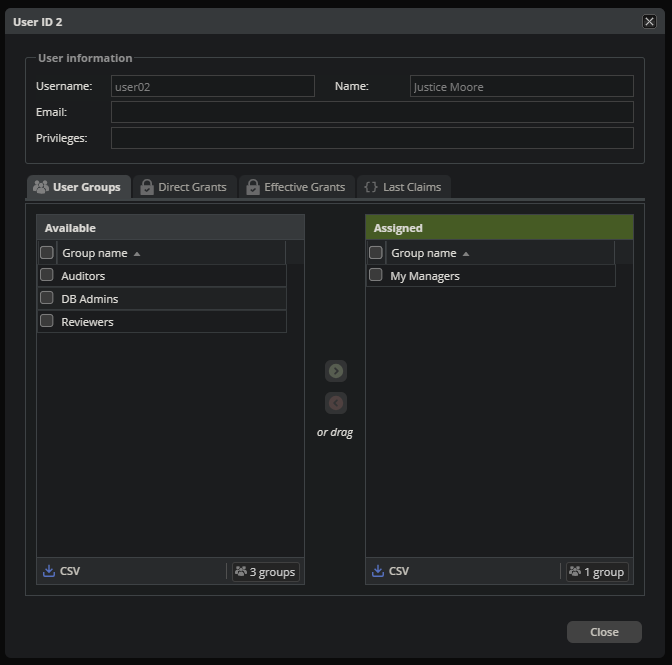
Double-click on a User, or select a user and click the “Modify User…” button to view that User’s Grants and other information. The pop-up will list the User’s email address and other Info, as well as the User’s Group Membership and Grants. The Direct Grants tab lists the Grants that have been specifically applied to the User, and the “Effective Grants” panel includes Collection Grants for Groups the User is a member of. The “Last Claims” tab displays the OIDC access token information received the last time the User accessed the application.
2.2.3. User Groups Admin Panel
This Panel lists the groups created in the STIGMan system. The columns display the Group Name, Description, Creation Date, the number of Users in the group, and the number of Collections the group has access to.
Only Application Managers can create or modify Groups and their User membership. Once a Group is created, it becomes available to all Collection Owners and Managers to be assigned Grants in their Collections.
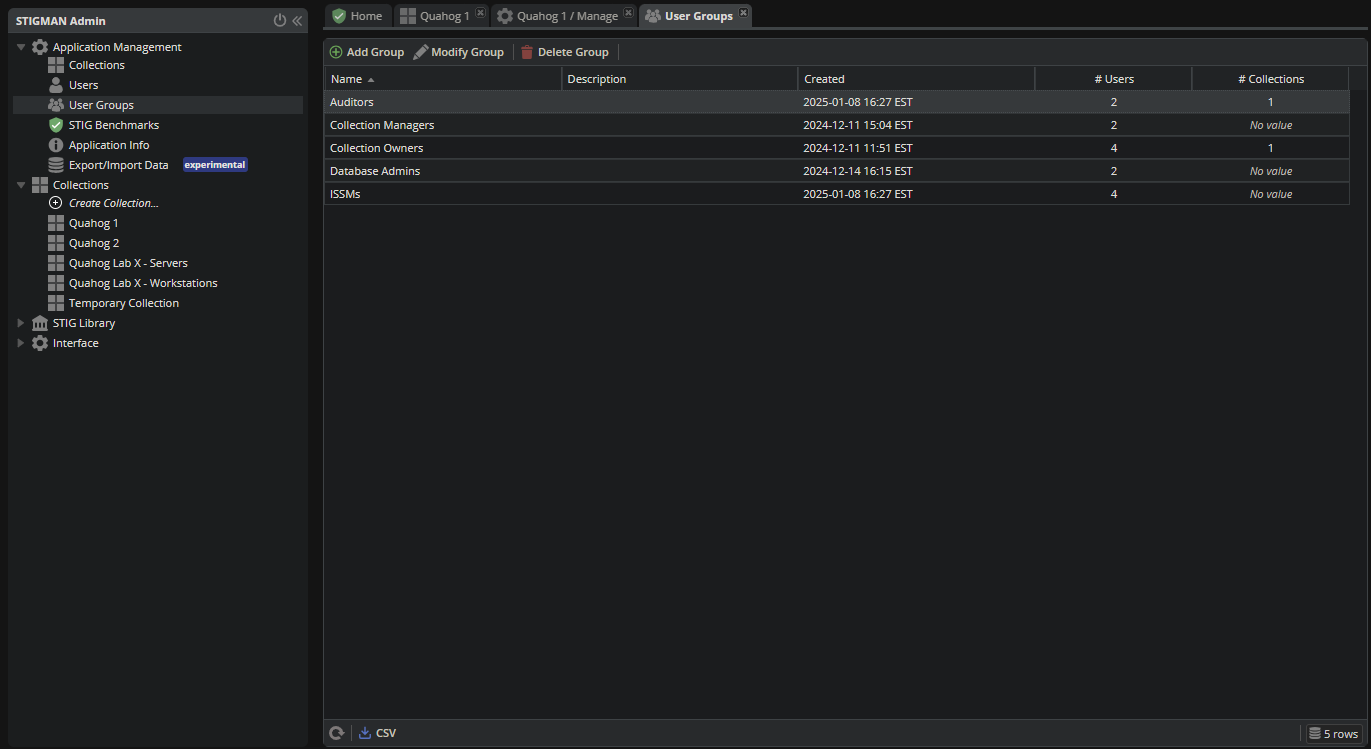
Groups can be created, deleted, and modified with the buttons at the top of the panel. Users can be added to or removed from groups by double-clicking on the group, or selecting a group and clicking the “Modify Group…” button.
Change the Users in the group by selecting the User and clicking the arrow buttons to move them between the “Available Users” and “Group Members” lists. Once Group Members is populated with the desired Users, click the “Save” button to save the changes.

2.2.4. STIG Benchmarks Admin Panel
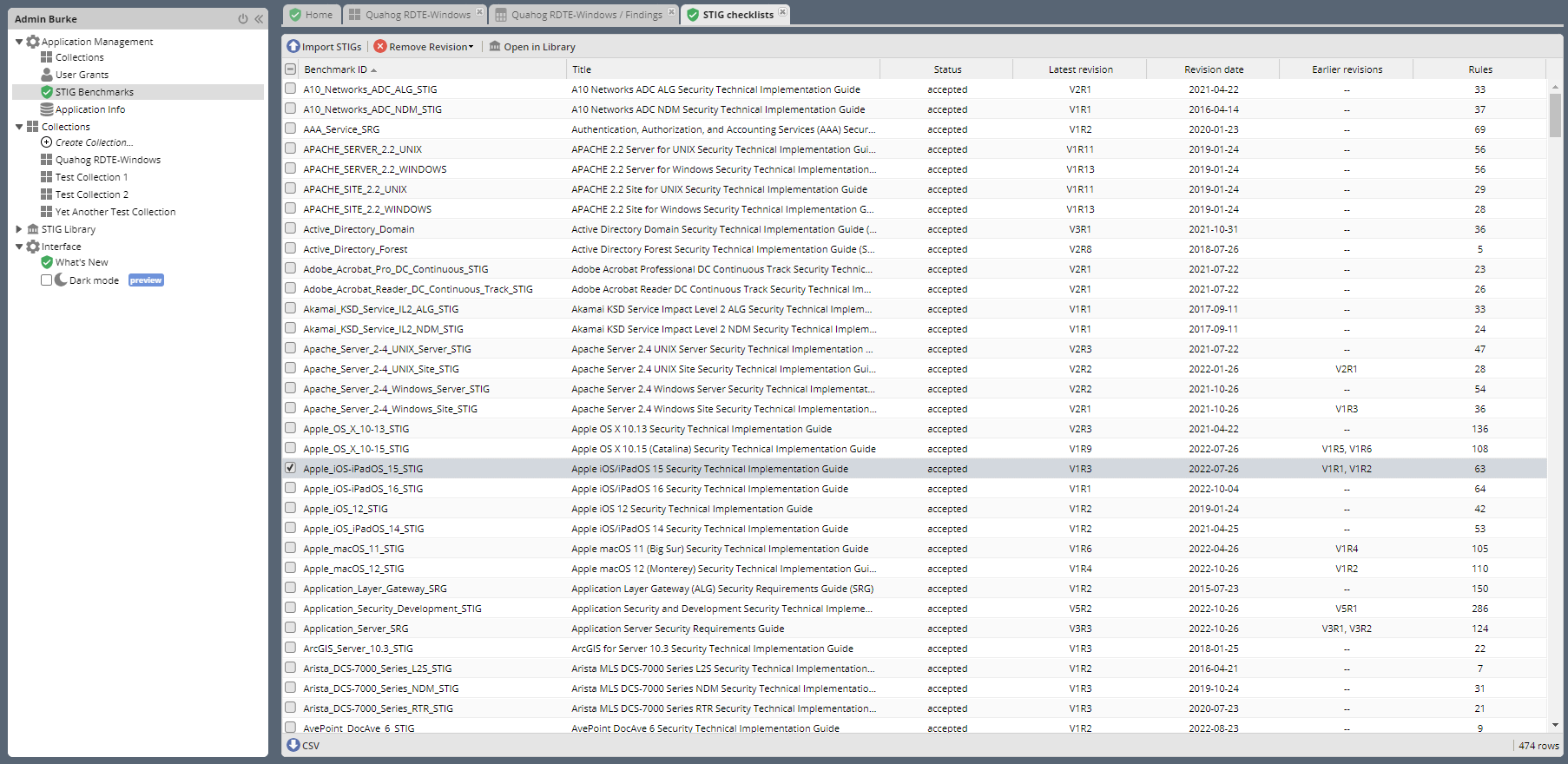
This panel lists every STIG that has been loaded into STIG Manager and allows App Managers to import new STIGs into STIG Manager. The panel indicates the Benchmark ID, STIG Title, status, Current Revision, Revision Date, number of Rules, and number of potentially automated Rules for each STIG.
Use the buttons at the top to add new STIGS, delete entire STIGs or specific revisions. STIGs can be imported individually, or as a .zip library of many STIGs.
Note
By default, if the imported file contains a STIG Revision that already exists in the STIG Manager system, STIG Manager will retain the existing revision. To overwrite existing revisions, select the “Replace existing Revisions” checkbox when importing.
Note
STIG Manager only knows about the STIGs you have imported into the system. This action must be performed by App Managers, often quarterly to keep pace with DISA releases. Once a new STIG revision is imported, that revision becomes the default STIG that is presented for Review to the User. Reviews for old STIGs still in the system can be viewed with the Checklist->Revisions menu item in the Asset Review workspace for that STIG.
2.2.5. Application Info Panel
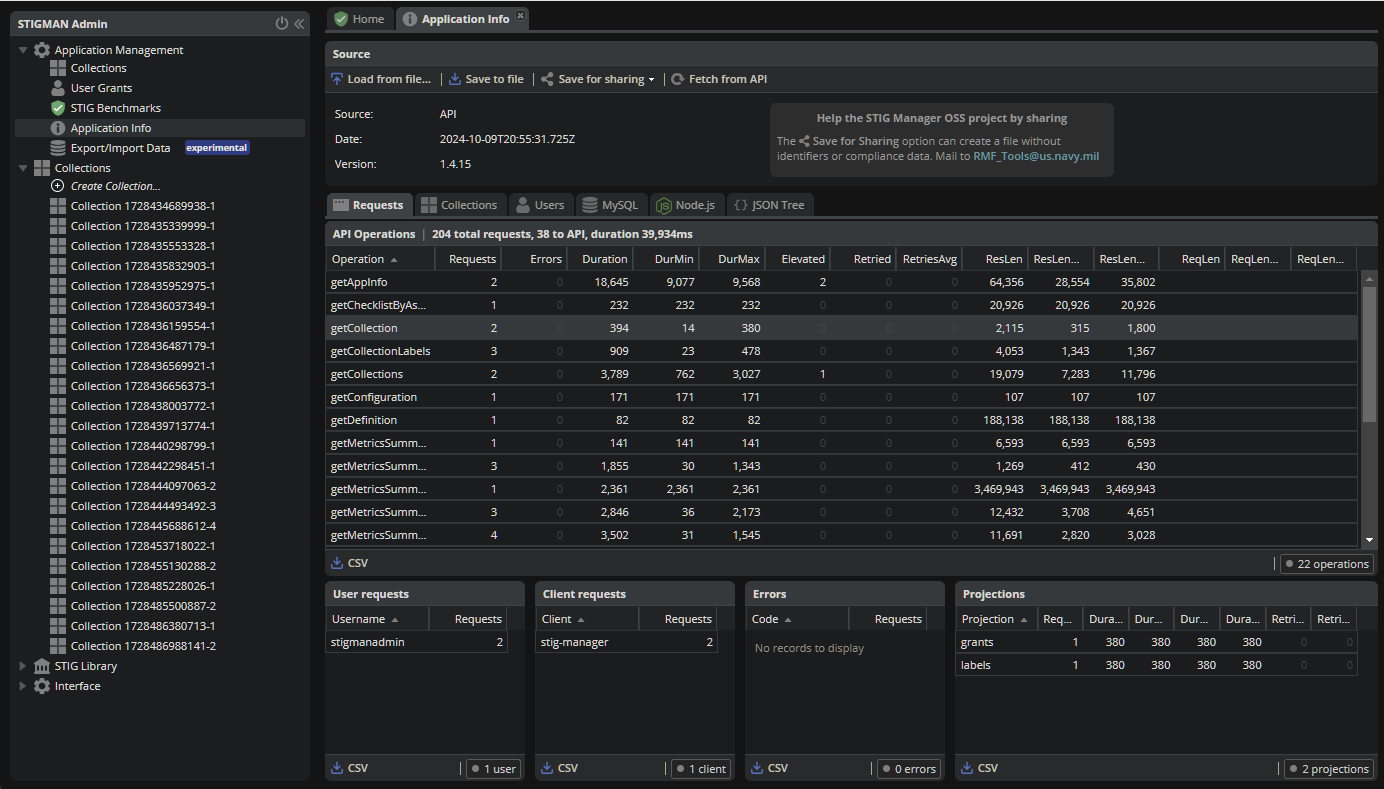
This panel provides App Managers with a report on the current state, performance, and utilization of the STIGMan application.
The toolbar allows users to load and save report data files, as well as fetch a new report from the API. The “Save for sharing” button will download a .json file of the current report data with the option to replace specific deployment data such as Collection and User names with generated identifiers.
The report displays the data source, date, and STIG Manager version at the top. Report data is displayed in the following tabs:
Requests: Information regarding the requests made to each API endpoint, organized by operationId. This data includes the count of requests, max duration, average duration, response length, error counts, and other useful metrics. Endpoints with
projectionparameters will populate the “Projections” panel with a subset of these metrics. This report also indicates users and clients that made the requests, as well as counts of any error code responses.Collections: High level metrics about the size and state of all Collections, including “disabled” Collections and Assets, total Reviews, grants, etc. This report offers additional tabs reporting Grants, Labels, STIG Assignments, and Settings by Collection. The “Access Control Lists” panel lists users and applicable access control rules for users with limited access to the Collection, such as those with Restricted-type grants.
Users: A report of all users of the system, their privileges, grants, and last active date. This report also includes panels summarizing overall user counts by privilege, and by last activity date (last 30/90 days).
Groups: A report of all User Groups in the system, their User count, grants, and creation date.
MySQL: Information about the managed data, configuration, and status of the MySQL database.
NodeJs: Information about the configuration of the STIGMan application, as well as status of the NodeJs server, including the version, uptime, and memory usage.
JSON Tree : A tree view of the data that is available in the report. Equivalent to the contents of the .json file that can be downloaded with the “Save” button.
Note
Help the STIG Manager team improve the application by sharing this report if you encounter issues or have suggestions for improvement. You can email the report to the team at RMF_Tools@us.navy.mil
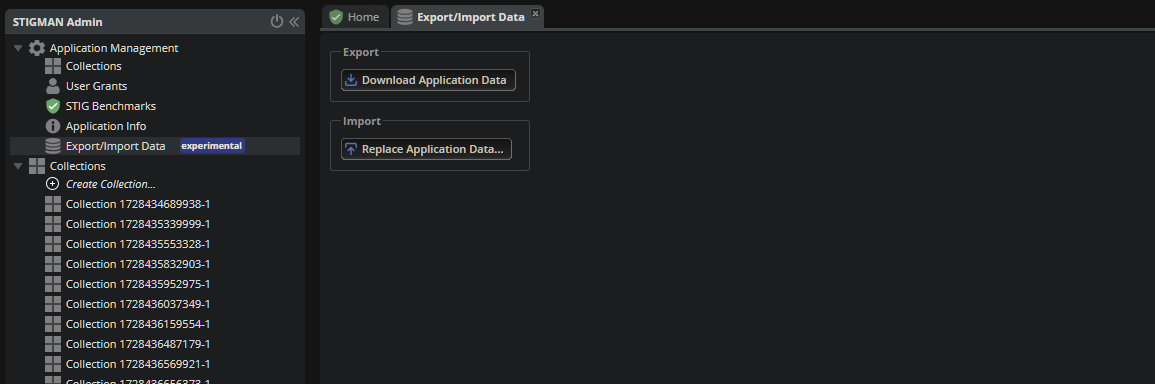
2.2.6. Export/Import Data Panel
This panel allows App Managers to stream JSONL records from the STIG Manager backend database to a file, with an option to GZip compress the stream. The final size of the file is unknown when the operation starts, so no progress indication can be provided. Transfer rates will be higher if the server does not compress the stream, but the final file may be up to 10x larger.
The downloaded file can be imported into the same or a different STIG Manager instance. All existing data will be overwritten. Importing a Gzip compressed file will reduce upload time and memory usage on the API service.
This feature must be enabled for the deployment by setting the STIGMAN_EXPERIMENTAL_APPDATA environment variable to true.
Warning
This feature is Experimental and continues to be developed, breaking changes may happen. Use at your own risk and rely on daily database backups to maintain your data. ALL data in the destination instance will be replaced.