1. STIGMan Application Manager (Administrator) Walkthrough
This Application Manager Walkthrough will walk you through typical responsibilities for a STIG Manager User with the App Manager role (often called “admin” for short and labeled that way in Keycloak). This Walkthrough assumes you are familiar with the terms and features specified in the STIG Manager User Guide. Beyond the permissions granted to normal Users, App Managers have the ability to:
Update STIG Benchmarks in STIG Manager
Alter Collections to which they have not been specifically granted access
Alter User Grants
Export and Import Application Data (Experimental feature for now.)
The most important responsibility of the Application Manager is importing and updating the set of STIGs the system will use to calculate statistics, assign to Assets, populate the Library, and reference in all other functions. This should be done quarterly, with the release of new STIG Library Compilations, or individually as new STIGs are released.
This update is quite simple, and is described below.
1.2. STIG Benchmarks
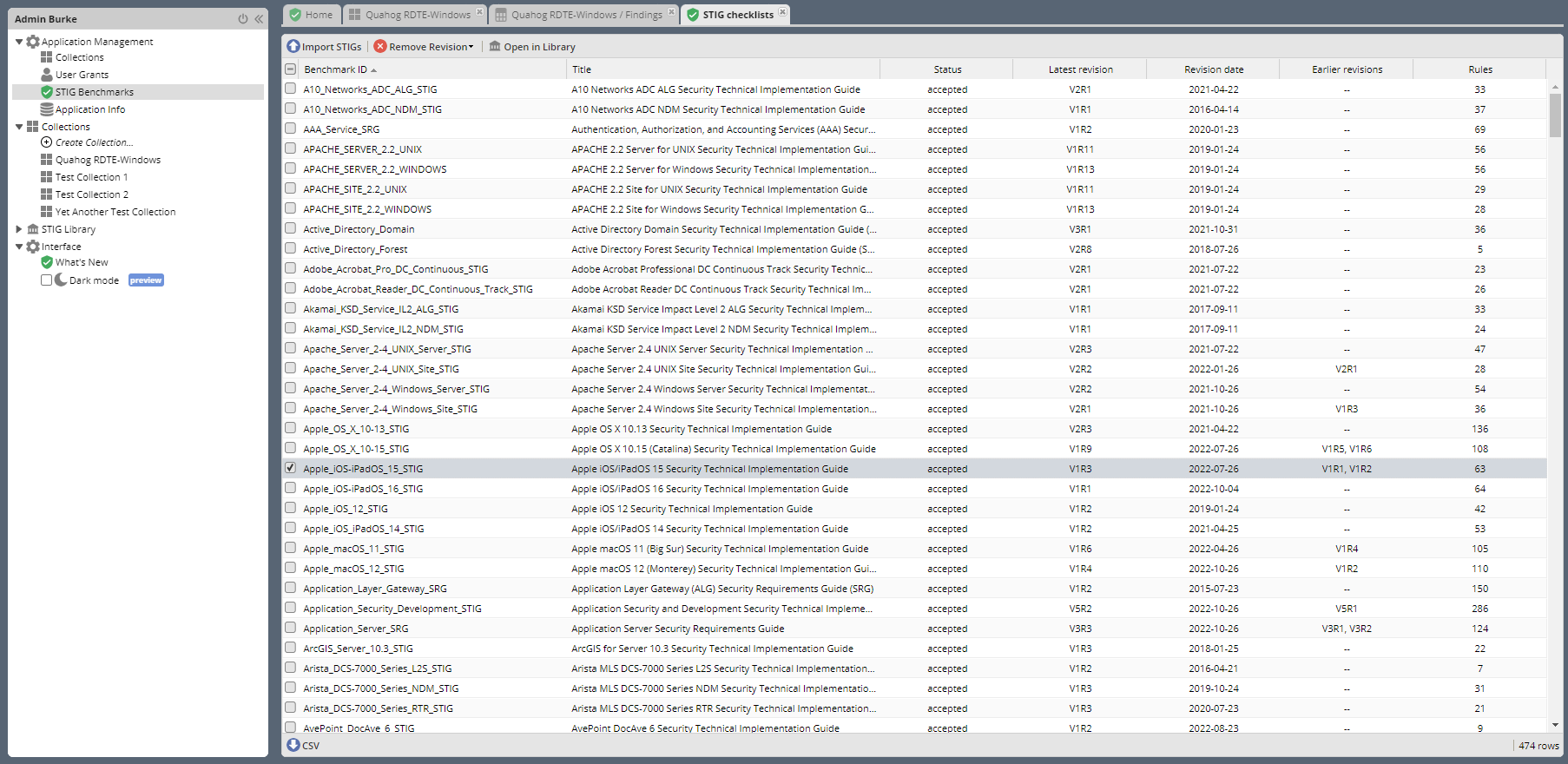
This tab shows you a list of STIGs known to this instance of STIG Manager along with some basic statistics about them, such as their rule count and revision date. This interface also allows you to import new STIGs.
Importing and Updating STIGs
DISA releases new versions of many of their STIGs every Quarter. They also occasionally release them off this schedule. Keep an eye on DISA’s https://public.cyber.mil/stigs/ and https://cyber.mil/stigs/ sites for updates.
These updates must be brought into STIG Manager if you wish the updates to be reflected in STIG Manager’s reports and presentation. STIGs must be imported by someone with Application Manager privileges in the STIG Manager instance:
Download the STIGs you want to update from DISA.
Upload the .zip files to STIG Manager via “Import STIGs” button in the
Application Management -> STIG Benchmarksworkspace accessed via the Navigation Tree. By default, if the file contains a STIG Revision that already exists in the STIG Manager system, STIG Manager will retain the existing revision. To overwrite existing revisions, select the “Replace existing Revisions” checkbox when importing.The import may run for several minutes. When finished, the workspace will be populated with the STIG IDs and other information about the STIGs you imported. These STIGs will now be available to users to assign to their Assets and for evaluations.
Note
You can import entire .zip archives of the Quarterly Library Compilations at once, or individual STIGs.
Attention
STIG Manager OSS will not be able to function as intended if you have not imported STIGs into the system. The STIGs you import should be the ones published by DISA, as they will be used as the reference STIG for almost all STIG Manager functions. STIGs must be imported before any Asset-STIG assignments can be made, manual evaluations performed, or .ckl files can be imported. All statistics are calculated against the latest (default) version of the STIG.
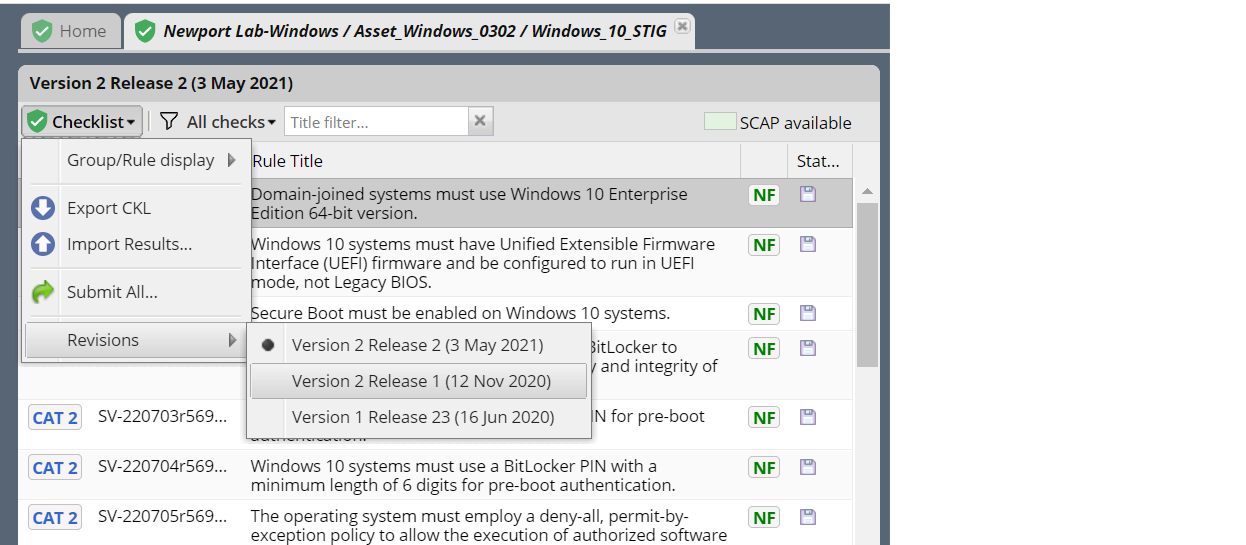
By default, STIG Manager displays Checklists and Reviews according to the latest version of the STIG. It will also recalculate statistics against the latest version(s) of the STIGs. No other action is needed after an update. When a new STIG is imported from this interface, ALL assets in the system will reflect new version of the imported STIG as the default. Older revisions of STIGs can still be selected from the Review or Collection Review Workspace checklist pulldown menu.
STIG Manager tracks Reviews by their Rule Version (often called “STIG ID”) and that Rule’s Check Content. In most cases, new STIG revisions will have substantially the same rule content as previous revisions. This means that most of the time, when you update Reference STIGs in STIG Manager, most Assets will carry most of their existing reviews forward and you will not have to start from scratch.
1.2.1. Delete Stigs or Revisions
Many STIGs are released quarterly, and old STIGs quickly lose their relevance. To keep a handle on Database growth and simplify the user experience, you may want to delete old STIG revisions. We have found it is not especially useful to keep STIGs greater than 1 revision away from the current one around, as they are no longer valid for most purposes.
You might also delete a STIG revision if you have updated STIGs but would prefer to revert to an older one as the default (hopefully not for long!). In this case, you might want to delete the current STIG revision.
Warning
When you delete a STIG or a specific STIG revision, Reviews for rules that only appear in that revision will be deleted. If the rules in that STIG are found in other STIGs or revisions, the reviews will remain.
1.3. Collections Tab
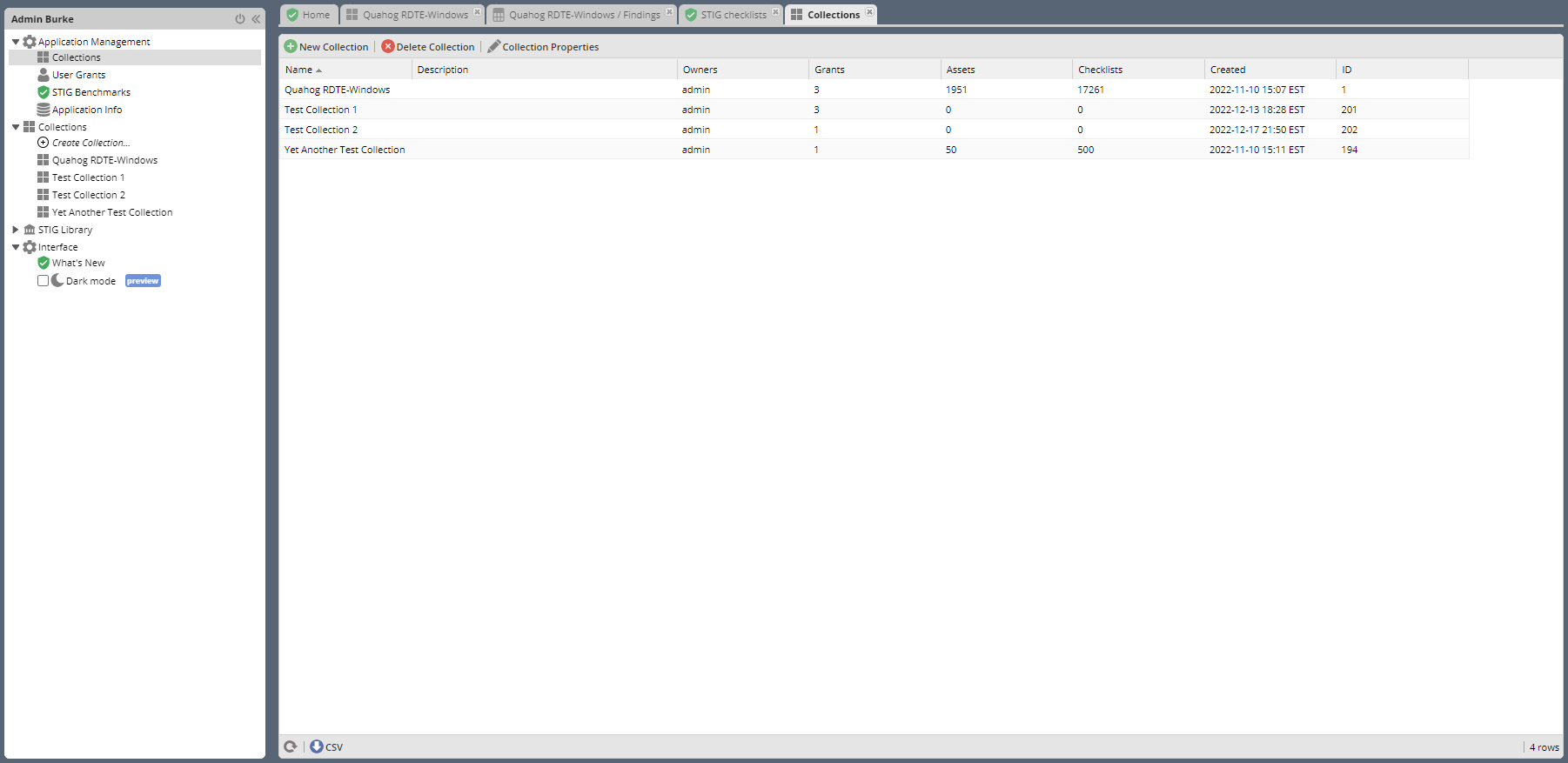
This tab presents a list of all Collections in STIG Manager, as well as some statistics about the Collection. It also includes buttons to create, delete, and alter Collection properties and grants.
In most cases, Collection Owners should be administering their own Collections. However, in cases where the Owner is unavailable, or has accidentally removed all owners from a Collection, this interface allows an App Manager to assign new Owner Grants to Collections by double-clicking the Collection or using the “Collection Properties” button. The App Manager can also delete Collections if required.
1.4. User Grants
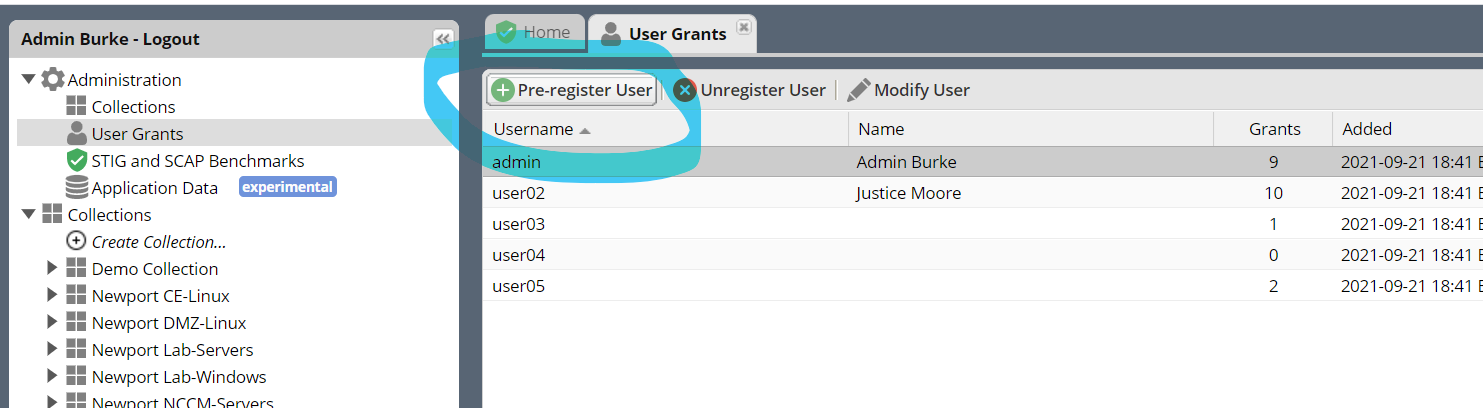
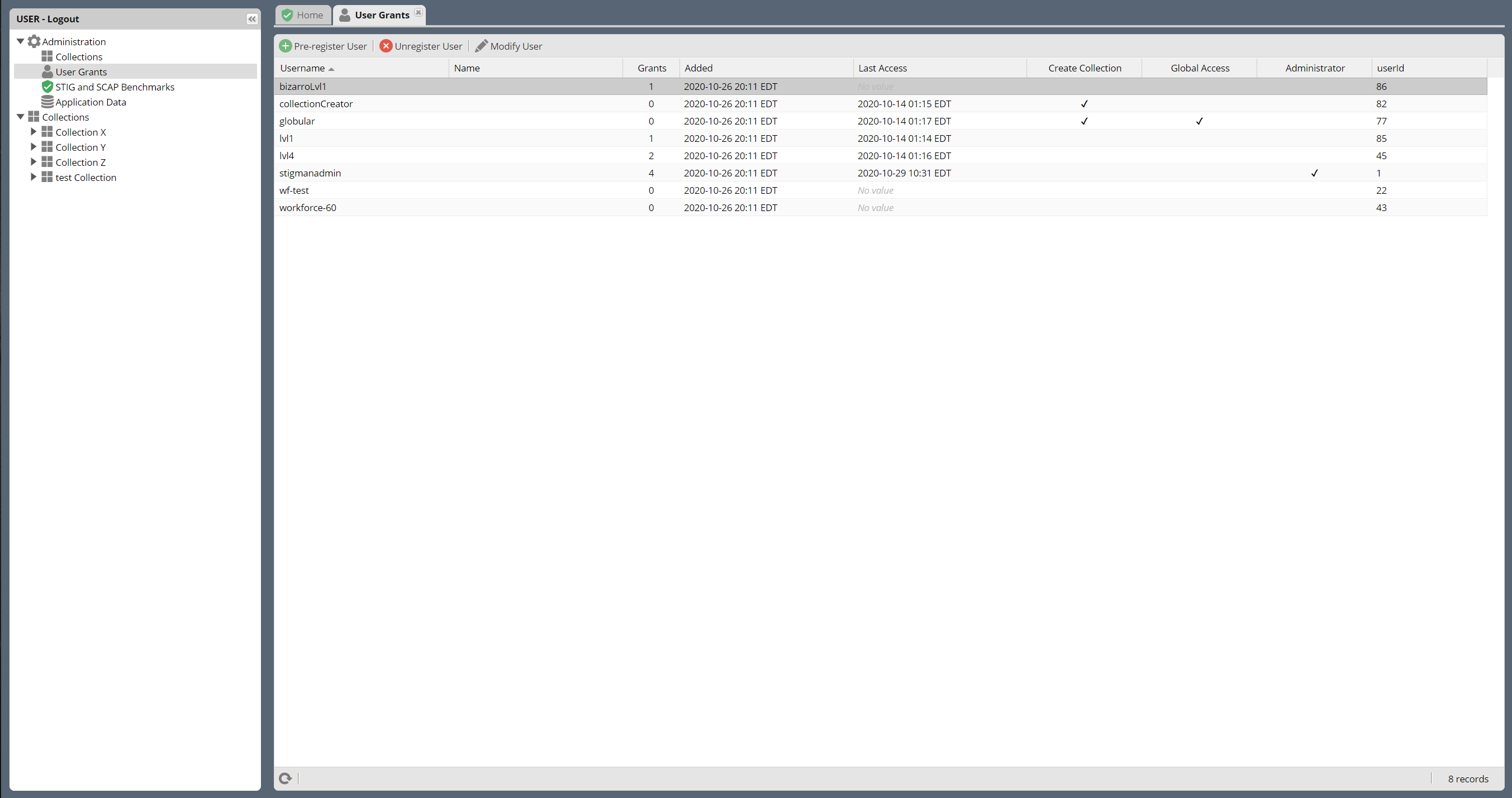
This tab presents a lit of all users known to STIG Manager, as well as some statistics about them. It also includes buttons to pre-register User, unregister User, and modify User Grants.
Attention
Being an App Manager in STIG Manager does not give you the ability to create new users or assign them new Roles (Admin or Collection Creator). Creating users and assigning Roles can only be done in the Authentication provider (often the Keycloak Management Console), and you must have the proper permissions on your Authentication Provider to do this.
1.4.1. Pre-registering Users
The pre-register function does not grant access to STIG Manager. User access is solely managed via your Authentication Provider (Keycloak, F5, etc).
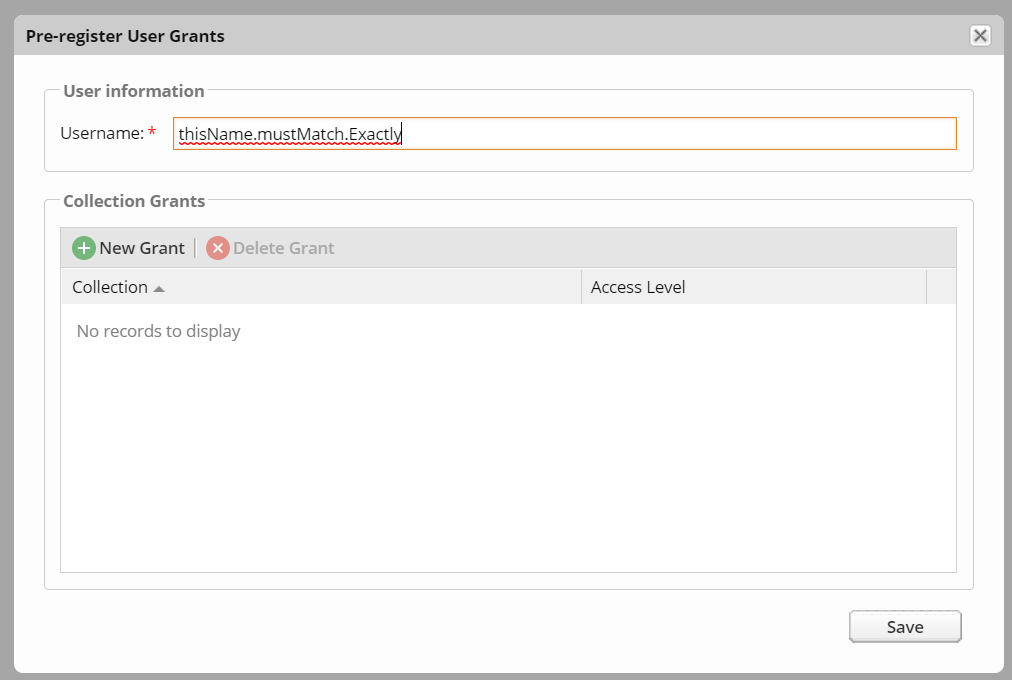
Typically, Users must access the system at least once before they can be given Collection Grants. STIG Manager will automatically creates a user record when a new Authenticated User accesses the system. If you want to make assignments to users before they have accessed the system, it is possible to pre-register them from the Administration -> User Grants workspace. Click the Pre-register User button, and enter their username. This username must match exactly the username that will be provided by the Authentication Provider when the user eventually shows up.
A pre-registered user will have No value in the Last Access column of this screen until they actually access STIG Manager.
1.4.2. Unregistering Users
Overall access to STIG Manager is controlled by your deployment’s OIDC Provider (ie. Keycloak). Unregistering Users will remove all their Collection Grants, but will not prevent access to STIG Manager unless the user is also disabled/deleted/altered in the Authentication Provider. However, once un-registered they will not have access to any information in STIG Manager besides the STIG Library.
To unregister a User, select the User, and click the “Unregister User” button. The selected user will have all their Collection Grants removed. The User’s other info will remain, so that any reviews or other actions they have performed will continue to have attribution.
Note
If you want to prevent a user from having any access at all to STIG Manager, you must contact your OIDC Provider POC and ask that they perform this action. This can be accomplished in different ways that will depend on your specific deployment.
1.4.3. Modifying Users
The only changes that can be made to Users in the STIG Manager interface is their Collection Grants. All other data in the User pop-up is derived from information in the access token, which is managed in the Authentication Provider.
1.5. Application Data
This Tab has buttons that allow you to Import and Export all User and Collection data from STIG Manager. These options are considered experimental and should not be relied upon to move or preserve Production data or other data you cannot afford to lose. On import, the imported data completely replaces all STIG Manager data currently on the system. Compatibility with future versions of STIG Manager is not guaranteed. They are currently used only for Development purposes. All that said, we are considering developing a method for handling the importation of STIG Manager Collection objects and their associated Assets, STIGs, Reviews, History, and Users.
1.6. Configure a Source of Automated Evaluations
There are several tools available that will automatically assess many of your STIGs, and provide output in .ckl or XCCDF output. Tools such as Evaluate STIG and SCC can be configured to populate file system folders with their evaluation results. If you find yourself with a lot of these .ckl files, you may find the STIGMan Watcher tool useful.
STIGMan Watcher is a lightweight command line utility that can be configured to monitor a file system folder for .ckl files or XCCDF results, and automatically submit them to a Collection on a STIG Manager instance. You could potentially have many STIGMan Watchers running, each monitoring a file folder and importing results into particular STIGMan Collections.
More information can be found along with the source code on GitHub and with the NodeJs package.
Note
Be sure to give the STIGMan Watcher user permissions on your Collection!